Silently enable BitLocker on Windows devices
You can create a BitLocker configuration that automatically and silently enables BitLocker on a device without the need for administrator rights. The device must meet the following conditions to be eligible for silently enabling BitLocker:
- If end users log in to the devices as Administrators, the device must run Microsoft Windows 10 version 1803 or later.
- If end users log in to the the devices as Standard Users, the device must run MS Windows 10 version 1809 or later.
- The device must be Azure AD Joined or Hybrid Azure AD Joined.
- The device must come with TPM (Trusted Platform Module) 2.0. To find out if the device has TPM 2.0:
- Open the Trusted Platform Module (TPM) Management utility on the device. To access this built-in utility, click the Windows Start button, and type tpm.msc.

- In the Trusted Platform Module (TPM) Management on Local Computer window, in the left pane, under Console Root, ensure that TPM Management on Local Computer is selected.
- In the right pane, observe the contents of the Status area. If it displays The TPM is ready for use, it means the device includes the TPM chip.
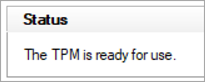
- Observe the contents of the TPM Manufacturer Information area. If it displays 2.0, it means the TPM chip uses the supported version.

- Open the Trusted Platform Module (TPM) Management utility on the device. To access this built-in utility, click the Windows Start button, and type tpm.msc.
- The BIOS mode must be set to Native UEFI only.
The following two settings for a BitLocker configuration must be selected in KACE Cloud:
- Hide Warning About Third Party Encryption
- Allow Standard Users To Enable BitLocker
The BitLocker configuration applied to the managed device must not require the use of a startup PIN or startup key. When a TPM startup PIN or startup key is required, BitLocker cannot be silently enabled because it requires interaction from the end user. This requirement is met through the following BitLocker configuration settings:
- Use Compatible TPM Startup PIN
- Use Compatible TPM Startup Key
- Use Compatible TPM PIN And Startup Key
For more information about BitLocker configuration settings, see Configure BitLocker settings in the Library.